Better iRacing Screenshots with Scenes
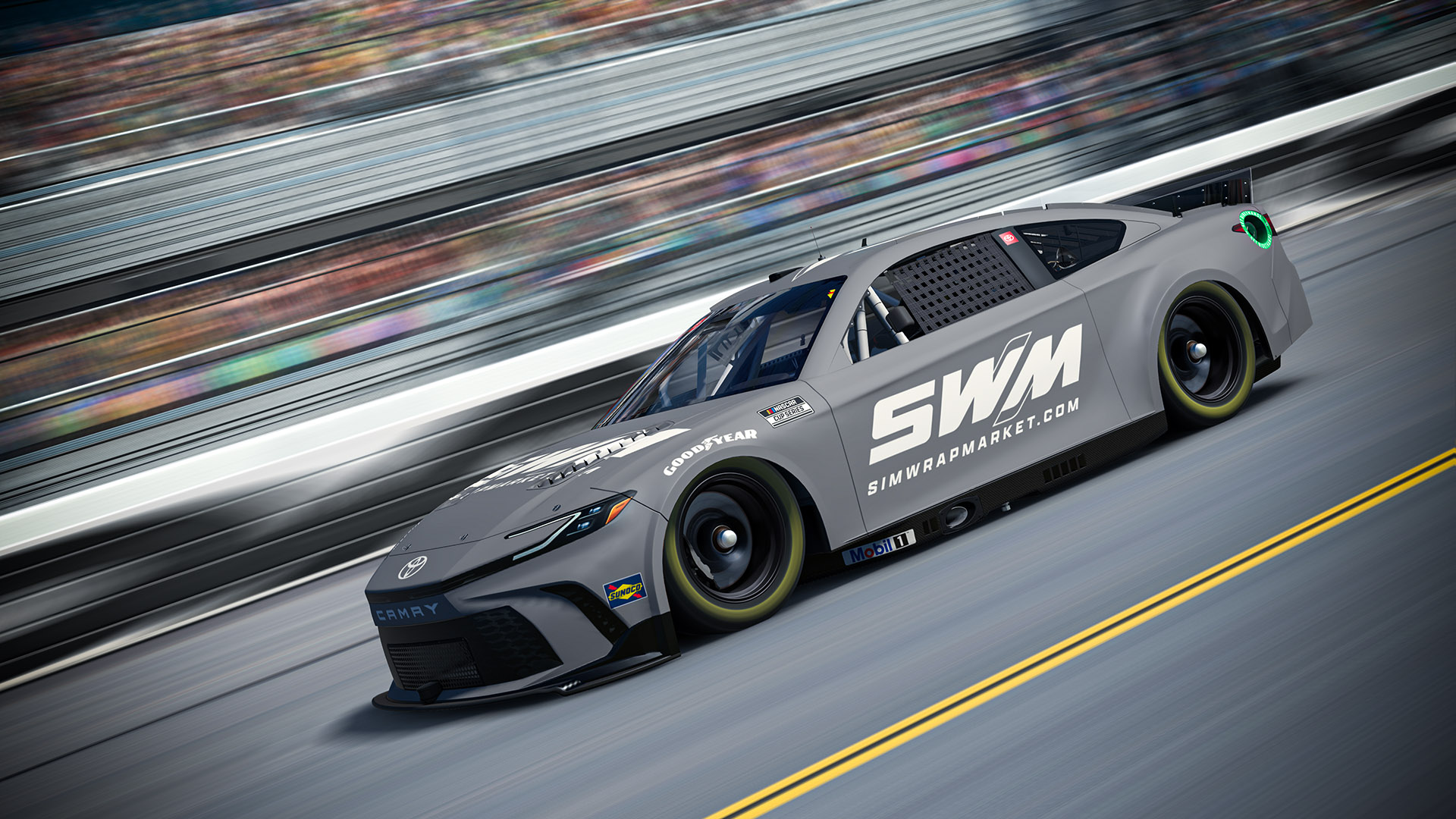
If you want cleaner iRacing screenshots for Trading Paints, client comps, or social posts, Scenes give you a simple setup: a custom camera file plus a Photoshop template built around Smart Objects.
What you get
Each Scene product includes:
A custom
.camfile with camera angles made for that carA Photoshop template with Smart Object slots for your capture
Optional filters you can toggle for contrast, color, and finish
You still need Photoshop or Photopea. Scenes handle the framing and layout work — not the paint design itself.
How to use a Scene
Install the included
.camfile in iRacing and switch to one of the Scene cameras.Frame the car, take your screenshot, and save it somewhere easy to find.
Open the Scene Photoshop template and drop the screenshot into the Smart Object.
Tweak the filters if you want, then export the final image.
That’s the whole loop. Once you’ve done it once, a finished shot usually takes a few minutes.
Good uses
Showing a finished paint without a busy replay background
Building a quick sponsorship or league presentation board
Getting a consistent look across multiple cars in a series
Browse Scenes
Current Scene products include:
If you’re painting for one of those cars and want a cleaner screenshot workflow, start with the matching Scene and go from there.